Order Assistant User Guide
The Fullfillonus Order Assistant runs the order steps across your order panel, Fullfillonus and Amazon for you, in order. It stops at the payment step; you always pay yourself. Below is the setup and every step.
Download the extensionBETAWhat happens on one order?
For each order the assistant runs these nine steps in order. Blue steps are automatic; on the red step it stops and waits for you.
Collect ordersOrder panel
Finds the "Not Purchased" orders and adds their order numbers to the list.
Shipping label + LMGFullfillonus
Opens the order, creates the shipping label and reads the LMG-XXXXXX code. This code links the warehouse package, the label and the order.
Add to cartAmazon
Adds the product to the cart at the order quantity via the Amazon link/ASIN on the order. (Clears the cart first so the quantity is exact.)
Address + LMGAmazon
Edits the saved warehouse address and appends the LMG number to the address line. It never adds a new address, it edits the existing one.
STOP at paymentAmazon
Stops at the payment screen and waits for you. You make the payment; the extension never touches the card or payment.
Buyer Order ID + amountAmazon
After payment it reads the buyer order number (Buyer Order ID) and the amount from the order history.
Purchased + Buyer IDOrder panel
Sets the buyer section to "Purchased", enters the Buyer Order ID and the purchase price.
Warehouse costOrder panel
Enters the estimated total from Fullfillonus as the warehouse cost, in GBP.
SaveOrder panel
Saves the details. The order is complete and the assistant moves to the next order.
The extension never touches payment details. You always complete the card, password and payment step yourself; the assistant only prepares up to payment and stops there.
Load the extension into Chrome
A one-time setup. The extension is currently BETA; there is no one-click Chrome store install yet, so you load the folder manually.
- Download the .zip above and extract it into a folder (right click → Extract).
- In Chrome, open chrome://extensions.
- Turn on Developer mode from the top right.
- Click Load unpacked.
- Select the extracted fullfillonus-siparis-asistani-beta folder.
- Click the Fullfillonus icon in the toolbar; the panel opens on the right side of the screen.
The panel stays pinned on the right. While it works you can move between the order panel, Fullfillonus and Amazon tabs; the panel stays open.
How to use it
First collect the orders, then start the queue. The assistant runs the steps one by one; you only complete the payment step.
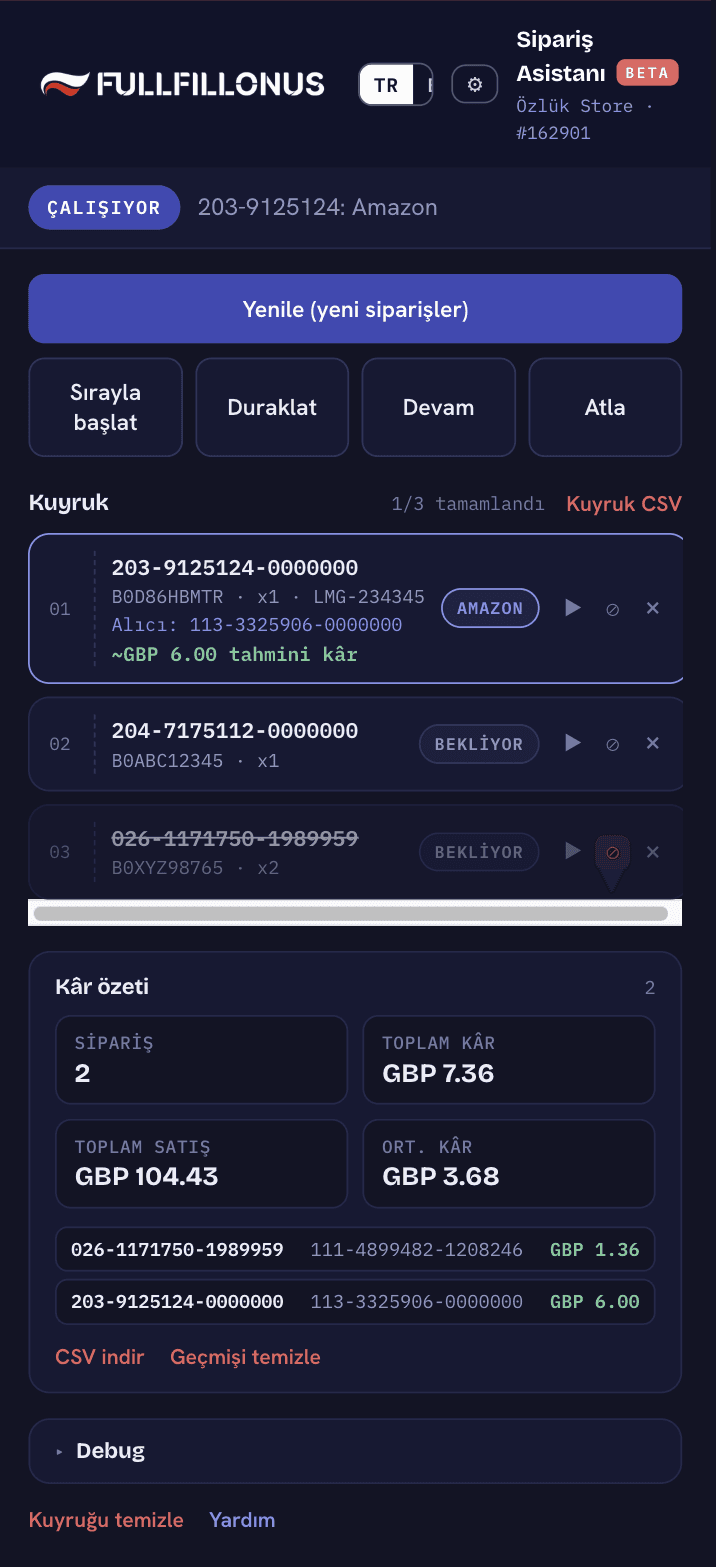
Panel, queue and controls
With the order panel tab open, press "Collect"; the orders appear in the list (after the first collect the button becomes "Refresh", adding new orders). "Start queue" runs it; it stops at the payment step, where you pay.
- On each row: ▶ start from this order · ⊘ do not fulfill (skipped) · × delete.
- Buyer (Buyer Order ID) and an estimated profit (before buying) show on the row.
- The top "Queue CSV" exports the whole queue (Buyer ID included).
- Below, "Profit summary": completed orders' profit and CSV export.
Settings window
All settings live in a window opened by the ⚙ icon at the top right of the panel.
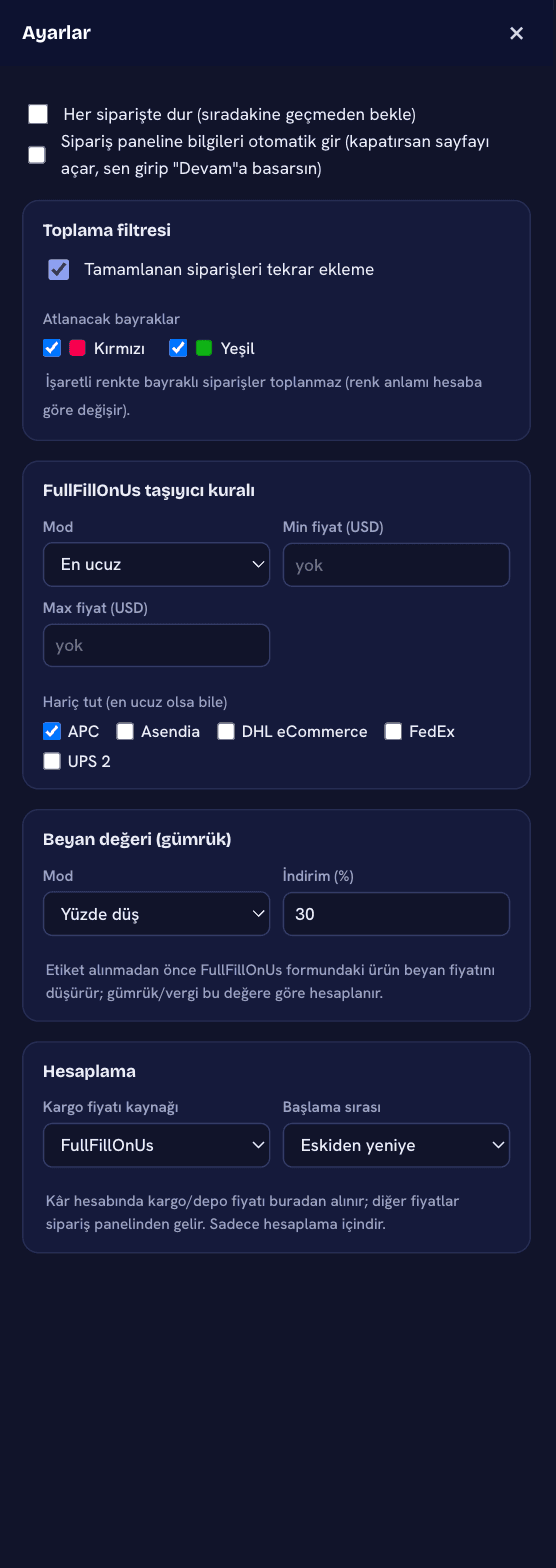
⚙ Settings window
Opens from the ⚙ in the header; closes with ×, Esc, or a click outside. Every preference in one place.
- Carrier rule: specific / cheapest / most expensive / manual + min-max price.
- Exclude: no label is taken from the checked carriers (even if cheapest).
- Collection filter: orders flagged red/green and completed ones are skipped.
Calculation: shipping source and order
For profit calculations, take the shipping/warehouse price from FullFillOnUs or the order panel (other prices always from the panel). Queue start order: oldest-first or newest-first.
Declared value (customs)
Before the label is created, lower the product's declared price by a percentage (e.g. 30%) or a fixed value to reduce the customs/duty amount.
Order panel: automatic or manual
The assistant writes the details automatically after payment. If you prefer, turn it off: it opens the page and you enter them yourself and press Continue.
Stop on every order
When on, it stops after each order; press Continue to move to the next one.
Special cases
If it gets stuck on a step, or the order was already purchased, the assistant warns you.
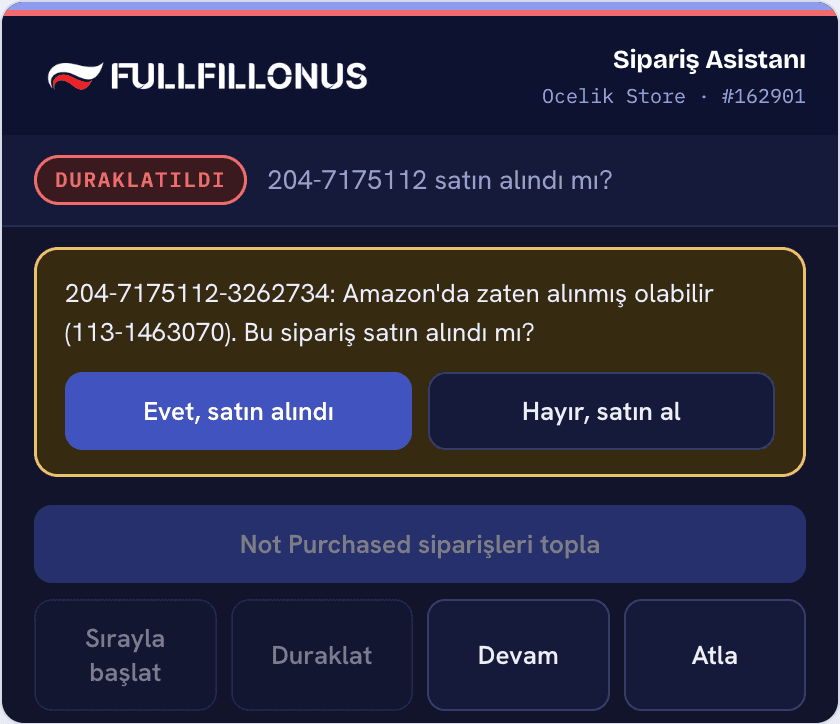
"Already purchased?" confirmation
If the Amazon step fails and you press Continue, the assistant checks whether the order was already purchased and asks you.
- Yes: it moves to the order-panel step (reads Buyer ID and amount).
- No: it tries to purchase the order again.
Let us connect your site too
Using a different order panel, marketplace or system? We can build a custom integration for you. Get in touch.
FAQ
Does the extension pay for me?
No. The extension stops at the payment step. You always enter the card details, password and the "Place order" step yourself.
What is the LMG number for?
The LMG-XXXXXX code links the warehouse package, the Fullfillonus label and the order-panel order. On Amazon it is added to the address line; the name field does not matter.
Why does it clear the cart first?
So no leftover product stays in the cart, the assistant clears it and then adds the exact order quantity. This prevents paying for the wrong quantity.
It got stuck on a step, what should I do?
Read the message in the panel. On the Amazon step, when you press Continue the assistant checks whether the order was purchased and asks you. If it persists, you can skip the order from the list.
Why does the panel stay open on the right?
So you can see the assistant while moving between tabs (order panel, Fullfillonus, Amazon), the panel stays pinned.